
What to check first
You can start using ZenBlocks Pro by authenticating the license key you receive after purchase in Settings > ZenBlocks. After successful authentication, the ZenBlocks Pro plugin will be automatically downloaded, installed, and activated.
What you can do with Pro version
When the Pro function is enabled, the following settings become available.
- Decorations: animations, transitions, shadows, inner shadows, transparency
- Text: Microtext, subtext, text changes on hover
- Media: Thumbnail
- Structure: icon frame, band, position
- Media videos: background videos, thumbnail videos, band videos
Step 1: Purchase a license
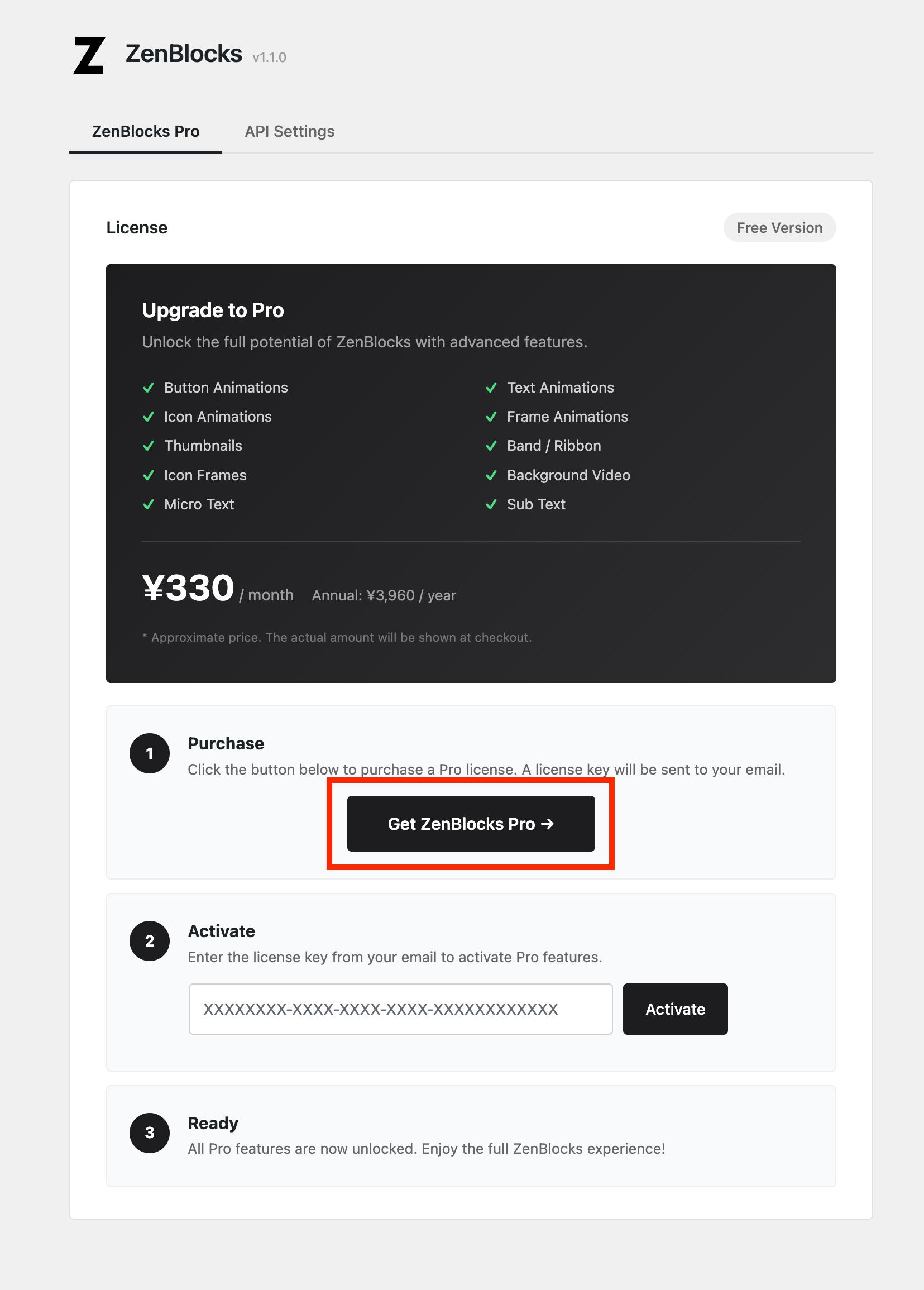
- Open Settings > ZenBlocks from the left menu of the WordPress management screen
Or open from ZenBlocks > Settings in the top menu
- Click the Get ZenBlocks Pro button
- Select a plan on the Lemon Squeezy payment screen and complete the purchase
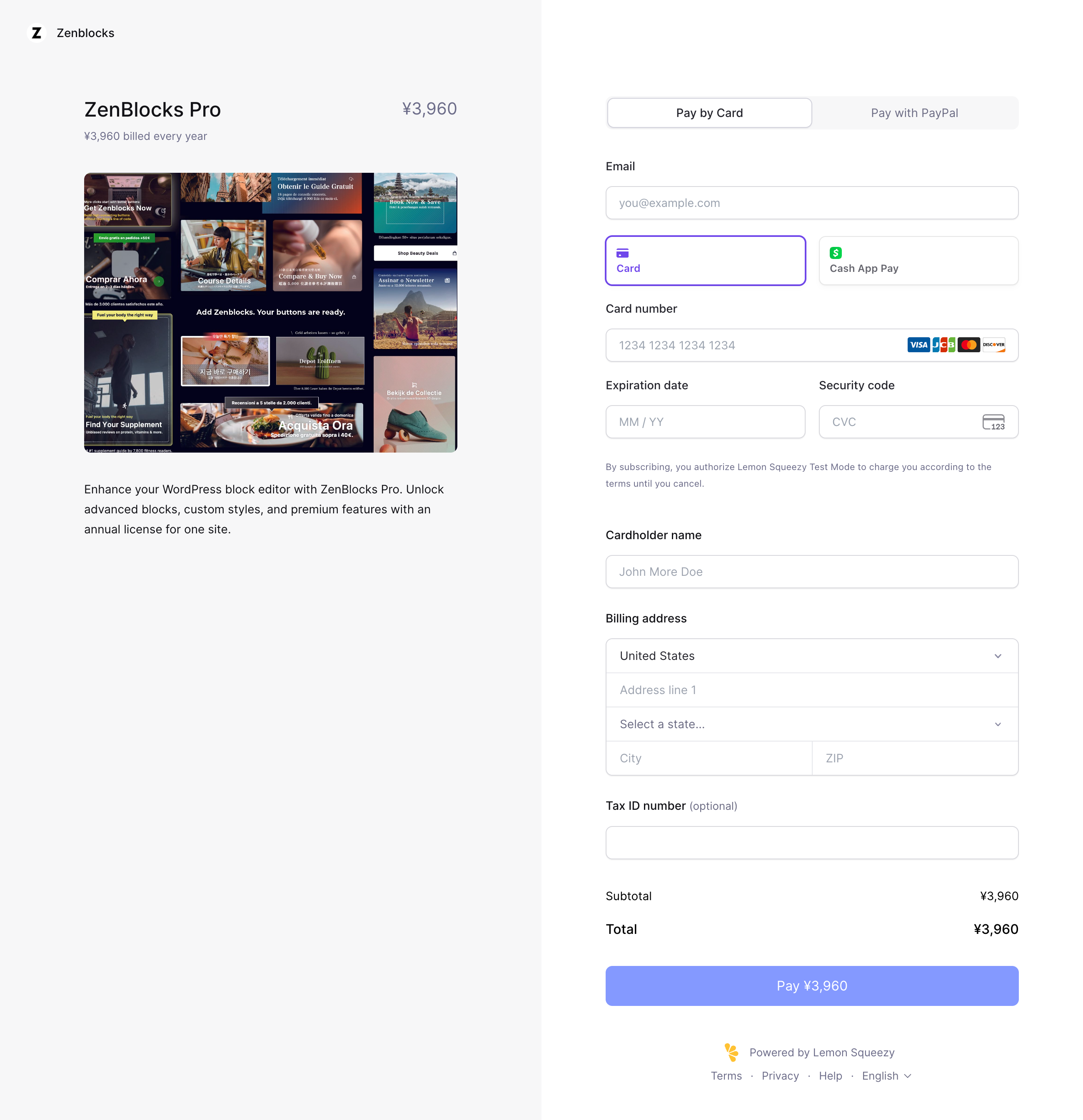
Point: Once your purchase is complete, you will receive a license key to your registered email address.
Note: On the payment screen, the price may be displayed in yen, such as ¥3,960 / year, but the displayed price is an estimate. Please check the final billing amount displayed on the checkout screen.
Step 2: Enter your license key
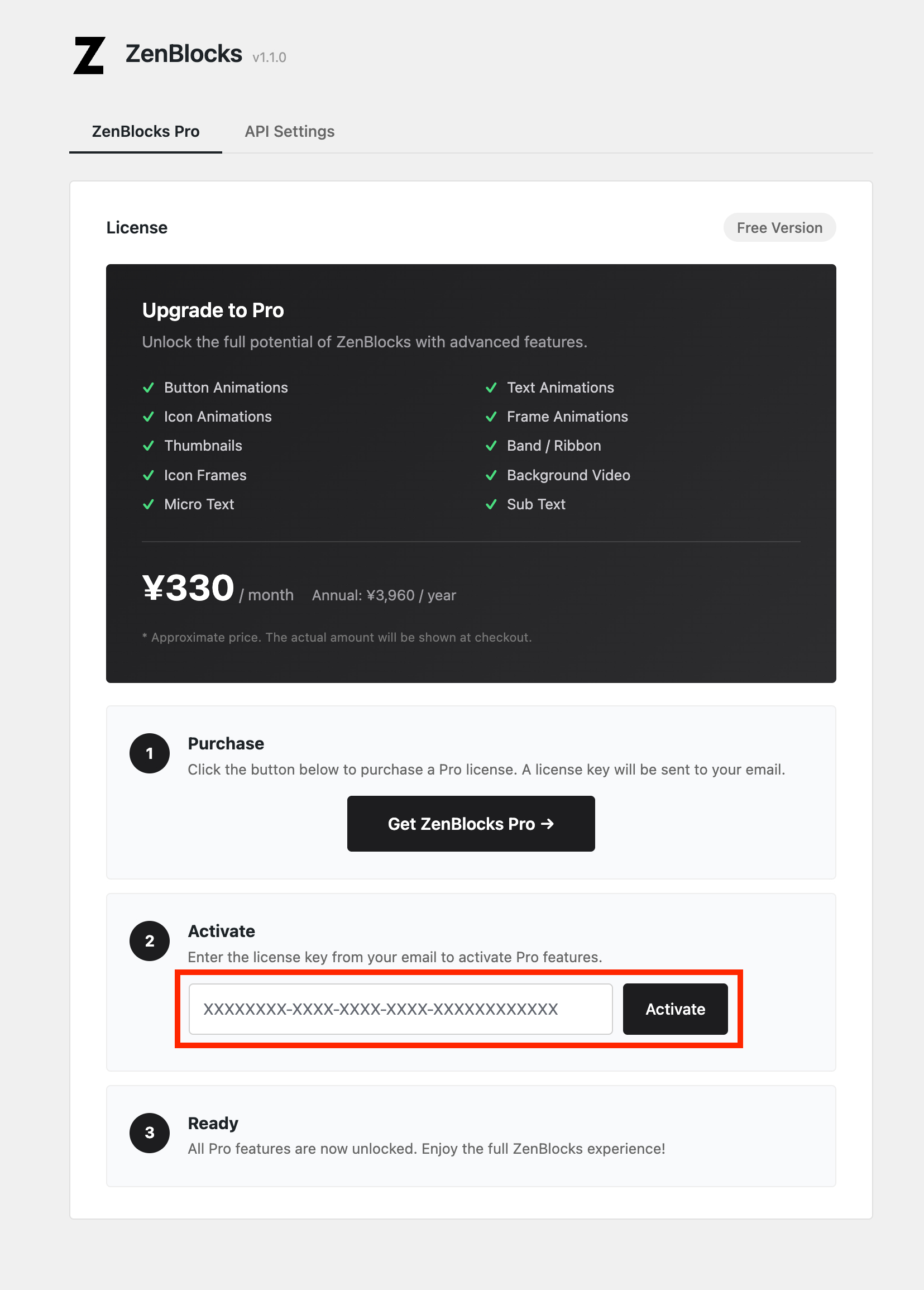
- Open Settings > ZenBlocks
- Enter the key you received via email in the license key input field.
- Click the Activate button
Point: The license key is in the format XXXXXXXX-XXXX-XXXX-XXXX-XXXXXXXXXXXX. Copying and pasting the key in your email will prevent you from making typos.
Note: When you click Activate, the download, installation, and activation of the ZenBlocks Pro plugin will begin automatically at the same time as license activation.
Step 3: Activate the ZenBlocks Pro plugin
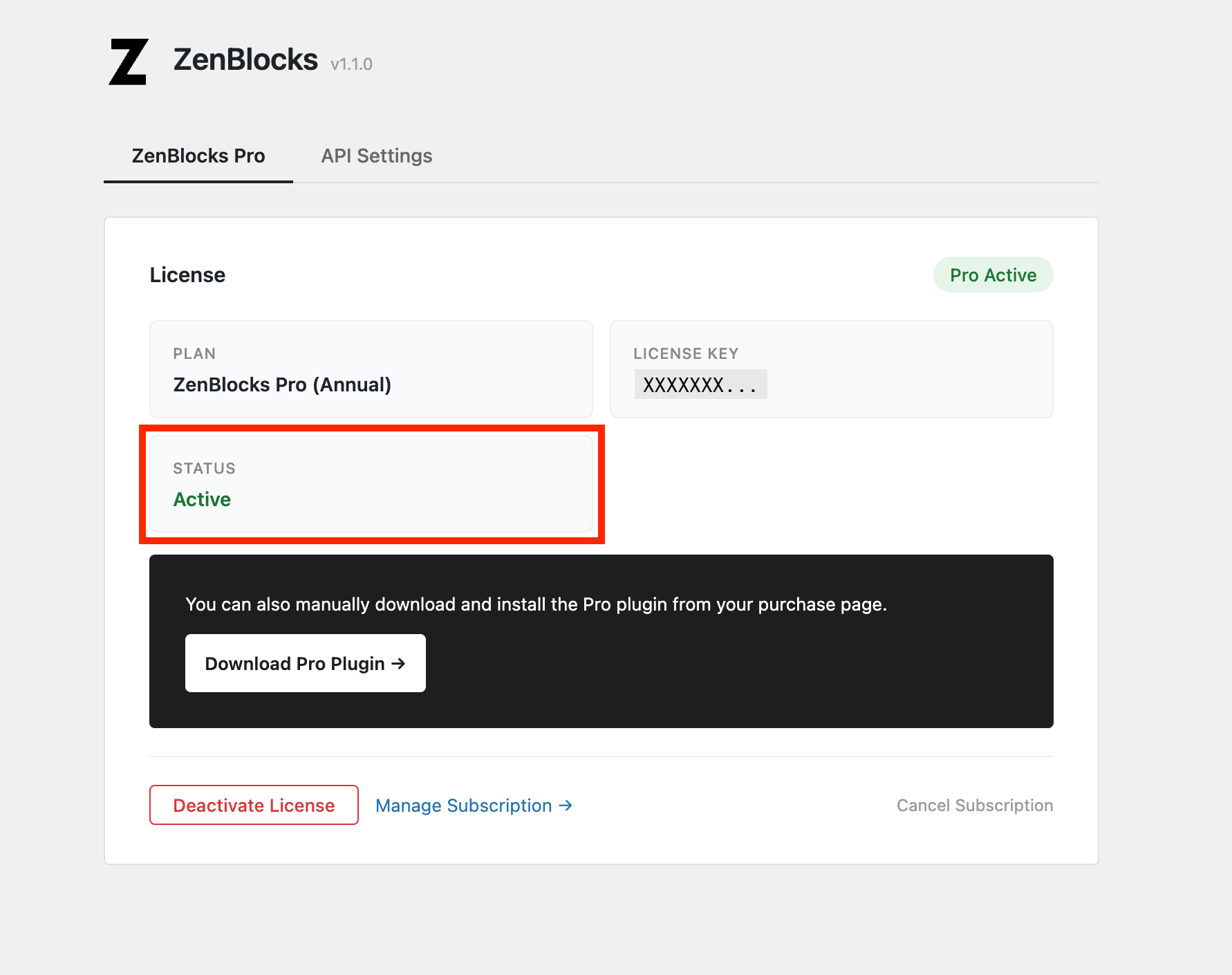
If the license key is successfully authenticated, the status on the settings screen will change to Pro Active and the ZenBlocks Pro plugin will be automatically installed and activated.
If the following two points are confirmed, the Pro function is ready for use.
- The green badge in the top right corner says Pro Active
- STATUS in the LICENSE field is Active
If the plugin was not automatically installed (manual installation)
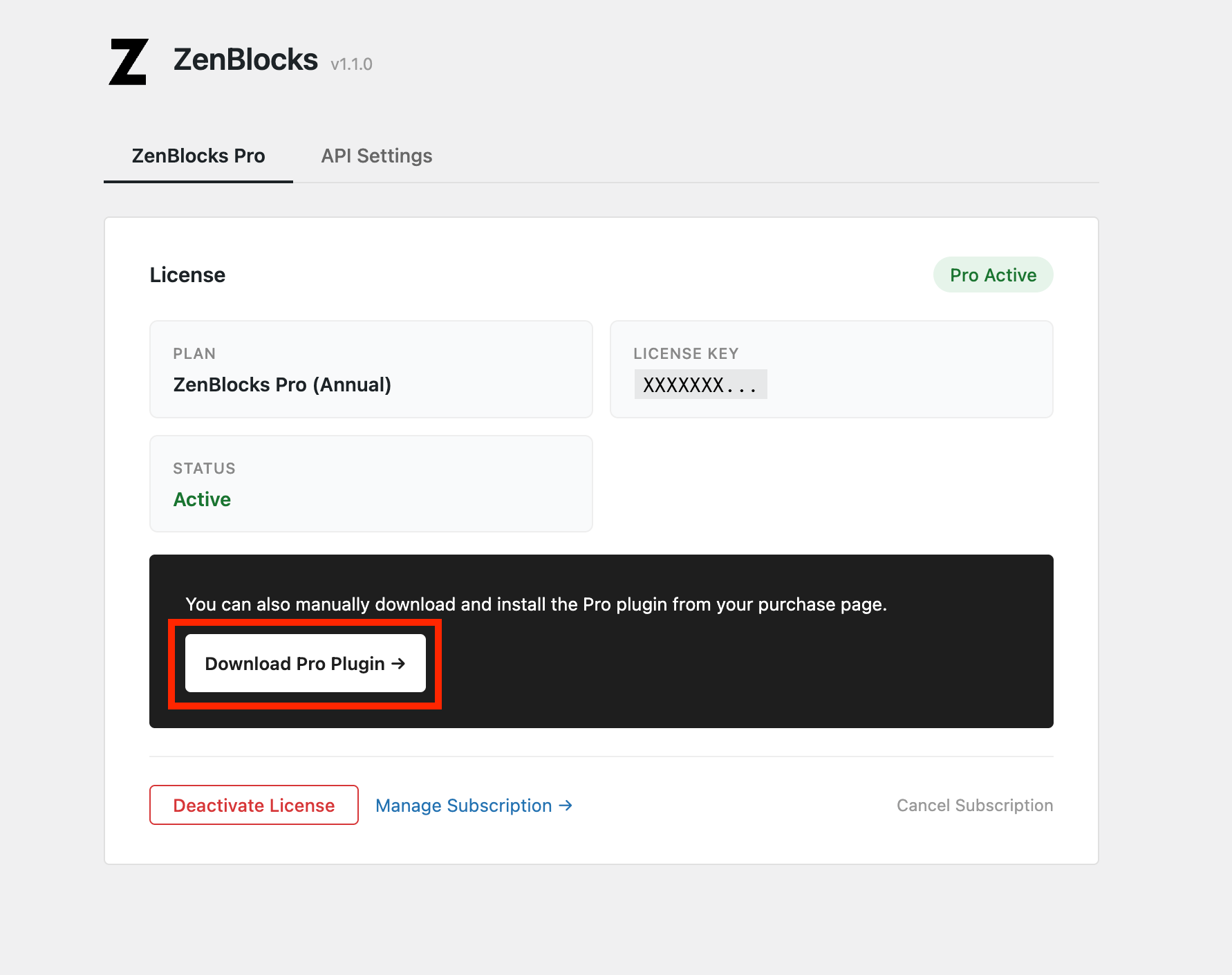
If automatic installation fails, please install manually using the following steps.
- Click the Download Pro Plugin → button displayed on the settings screen.
- Open the purchase page (Lemon Squeezy customer portal)
- Download the ZIP file
- On the WordPress management screen, open Plugins > Add new > Upload plugin
- Upload ZIP file and activate
Check if Pro feature is enabled
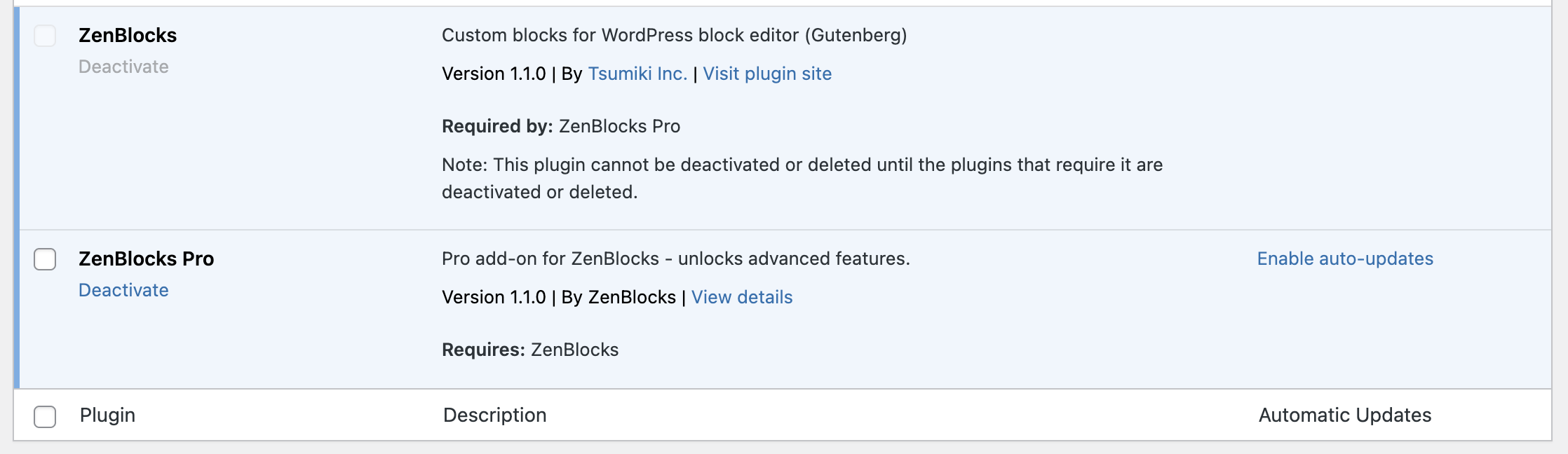
You can check by following these steps:
- Open Plugins > Installed Plugins on the WordPress management screen
- Check if both ZenBlocks and ZenBlocks Pro are enabled
- After that, select Button Basic in the block editor and check whether the Pro dedicated panels (animation, microcopy, etc.) can be used.
Manage your subscription
What you can do with Manage Subscription
You can access the customer portal for Lemon Squeezy from the Manage Subscription → link in Settings > ZenBlocks.
- Change plan
- Update payment method
- Check billing history
- Cancellation of subscription
Cancellation of subscription
You can cancel directly from the Cancel Subscription link at the bottom right of the settings screen. You can also open and interact with the same customer portal from Manage Subscription →.
Disabling license (when changing site)
If you want to transfer your license to another site:
- Open Settings > ZenBlocks on the current site
- Click the Deactivate button to deactivate the license
- Enter the same license key on the destination site and activate again.
Operations after cancellation/expiration
When a license is revoked:
- Front-end display: Immediate fallback to Free version equivalent (no grace period)
- Retain settings: Saved Pro settings will not be deleted
- When re-signing: If you reactivate with the same license key, your previous settings will be restored.
Note: Values set with the Pro function (animation, microcopy, etc.) are saved as block attributes, so you can return to the original display by reactivating the Pro version.
Cancel your subscription
- Open Settings > ZenBlocks
- Click Cancel Subscription at the bottom right of the license management screen.
- The Lemon Squeezy customer portal will open, so follow the on-screen instructions to complete the cancellation procedure.
After cancellation:
- You will continue to have access to Pro functionality until the end of your current contract period
- After the period ends, the front end display will automatically return to the Free version.
- Saved Pro settings will not be deleted
- If you wish to renew your contract, please reactivate with a new license key.
If the Pro function is not enabled
Please check in the following order.
1. Check license status
- Check if the license status is "Active" in Settings > ZenBlocks
- If it is "Inactive" or "Expired", re-enter the license key.
2. Check the activation status of the plugin
- Open Plugins > Installed Plugins
- Check if both ZenBlocks and ZenBlocks Pro are enabled
- If either is disabled, enable it
3. Reload plugins
- ZenBlocks (free version) once disable → re-enable
- Re-enable ZenBlocks Pro as well
4. Clear browser cache
- Clear browser cache (Ctrl+Shift+R / Cmd+Shift+R)
- Reload editor
If the problem still persists, please post to WordPress.org Support Forum.
next step
For detailed instructions on how to use the Pro function, please refer to the explanations of each panel in the [buttonBasic Settings Guide] (../../buttonbasic/).